

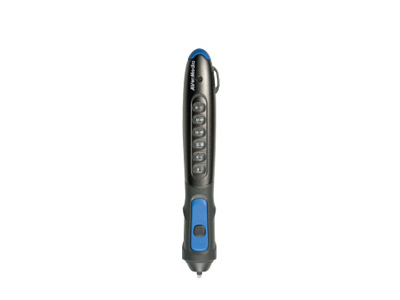
AVerPen Downloads
- AVerPen User Manual (Updated: 10/11/2010)
- AVerPen Quick Guide
A+ Interactive Software (Old version)
- A+ Interactive Software 1.7 Software (v.1.7.1.6) - Mac
- A+ Interactive Software Quick Reference Guide - Mac
- A+ Interactive Software Uninstaller - Mac (Download and run this software to uninstall older A+ software before installing a new version)
AVerPen FAQ
I couldn't seem to control the mouse cursor on the screen after leaving the AVerPen on the table for a few minutes.
The AverPen Automatically switches to sleep mode whenever there is no activity. This method is primarily utilized to conserve batter power. To "Wake" up the pen, press and hold the tail for 3 seconds. The LED light will turn on.
I cannot get the AVerPen to connect to Pen Management.
- Make sure your AVerpen is fully charged. The led indicator should turn green when the pen is in the cradle.
- All pens needs to be out of their cradles in order for the software to bind them.
- Make sure your teacher cradle is connected to the computer by USB cable.
- If the signal is empty in pen management, it means the pen is not registered. To manually bind the pen, click on the “ASSIGN” button in pen management, then press and hold both the tail and index buttons till the signal indicator appears.
I can't use the GRS and Multiple Inputs, the icons are disabled.
The software could not find the teacher cradle. Connect the teacher cradle to computer's USB port again or to a different USB port for the computer to detect the teacher cradle.
I couldn't seem to identify which ID each student pen belongs to.
In the A+ Interactive Software menu bar, click Settings > AverPen > Pen Management. Press Query to synchronize the pen number to the pen (Do this only when the pens are "awake" and out of the charging cradle). The Pen will flash and the button in the Button Signal Pattern is now enabled. You may use the supplied sticker to write down the pen number and stick it on the pen.
I have clicked (Bind) in Multiple Inputs or Vote Panel but still the icon(s) in the pen pool remains gray.
The Student pen could be in sleep mode, low battery or out of range. Check the student pen status in Pen management and refer to Using the AVerPen Section.
Can AVerPen work with other IWBs (Interactive White Boards)?
Yes for the teacher pen as it can function as an optical mouse.
What does the buttons do on the AVerPen.
- For the Teacher Pen the buttons allows you to control power point, Media Player and the A+ Interactive software. Below are the definitions of the buttons.
- The student pen buttons can be operated and used under GRS (Group respond system) and Multiple Inputs mode only with the Authorization from the teacher pen. Below are the definitions of the buttons.
What do all different colors on the LED status mean?
- Orange light steady > Charging
- Orange light flash 3 times > Searching the cradle to bind
- Orange light up in 3 sec. > Enter sleep mode
- Orange flash every .5 sec. > Battery power low only 10-20% left
- Green light Steady > charge Complete
- Green light flashes 3 times > Found cradle and binding completed
- Green light up in 3 sec > Exit sleep mode
- Green Flash every 3 sec Standby mode
My A+ Interactive software still cannot detect the pens after I have gone through all the troubleshooting.
- Check your Device Manager, If AVerPen driver shows damaged, right click and select “Update Driver”.
- Check that your AVerPen Battery is not defective.
- Make sure you have the most currently updated software, download list is found under Download tab.
For more AVerPen Q&A please visit this page